GETTING STARTED
The eB2B is a powerful Business 2 Business and Wholesale platform that allows you to control your store for both B2B and B2C customers. You can organize your customers into groups, apply different prices for each customer groups, hide products, disable shipping/payment methods separately and much more.
The instructions below will make up your mind about the platform. Don’t hesitate to call us or email us directly in case of any issue.
GROUPS
Organize your customers into groups. You can add special rules, discounts or product/category visibility settings for them.
For example you can sell a product to B2C customers for $99, while you can sell it to the Reseller (B2B) group for $90.
To create a group;
Go to eB2B → Groups
Click the New group button
Type the group name and select which payment methods and shipping methods will be active for this group.
PRODUCT PRICES
With eB2B, you can set special prices for groups and offer different prices according to the quantity of products.
For this;
Go to the Products page
Select the product you want to change
In the General tab, you will see fields where you can set prices for other groups.
VISIBILITY
To change the visibility of products or categories by groups, go to the edit screen of the product or category and select the eB2B tab.
Setting category visibility
To set which groups will see a category;
Go to Products → Categories
Select the category you want to change
Select groups and/or customers from the Visibility tab
Setting product visibility
To change the visibility of a product;
Go to the Products page
Select the product you want to change
In the eB2B tab, click the Visibility section
a. Default: It follows the rules of the category to which the product belongs.
b. Manual settings: You can set custom visibility for this product and choose which groups can see this product.
OFFERS
With Offers, you can create suggestions or bundles for your customers and give them special prices.
Create new offer
You can use the eB2B → Offers → New Offer button to create a new offer.
Name: It is the offer title that customers will see on the My Account page.
Groups: Select the groups that can see this offer.
Users: Besides groups, you can also create offers directly to customers. Search for the customer’s name to add to the list.
Cart Image: You can add a cart image for the offer.
Promotion Text: You can write a promotional text for the offer.
Promotion Image: You can add a promotional image for the offer.
QUOTES
Quotes allows your customers to request discounts from you. When customers add products to their carts, they see “Request a Quote” button on the Cart screen.
To show the “Request a Quote” button;
Go to eB2B → Settings → Quotes.
Choose which groups will see the “Request a Quote” button.
Get extra information
You can add additional fields to the “Request a quote” and get additional information from customers.
For this;
Go to eB2B → Settings → Quotes.
Click the Add new field button under the “Quotes Fields” section.
The created offers will be displayed in the Offers tab of the customer’s My Account screen.
RULES
With Rules, you can create rules such as price adjustments, tax exemptions, cart discounts for groups, customers, products or categories.
General Settings
You can use the following fields when create a rule:
Type: Type of rule
Amount: Discount type and how much discount you will make
Users: Who will this discount be applied to?
- Everyone
- Guests: Anyone who is not logged in
- All B2C users: All registered and logged in B2C users
- All B2B users: All registered and logged in B2B users
- User group: Only the groups you choose. If you use the “IN” operator, the rule is applied if the customer belongs to one of the groups in the list. If you use the “NOT IN” operator, the customer must not belong to any of the groups in the list.
- Customer: Only individual users you have selected
Products: Which products and categories will it be valid for?
Conditions: Additional conditions for the rule.
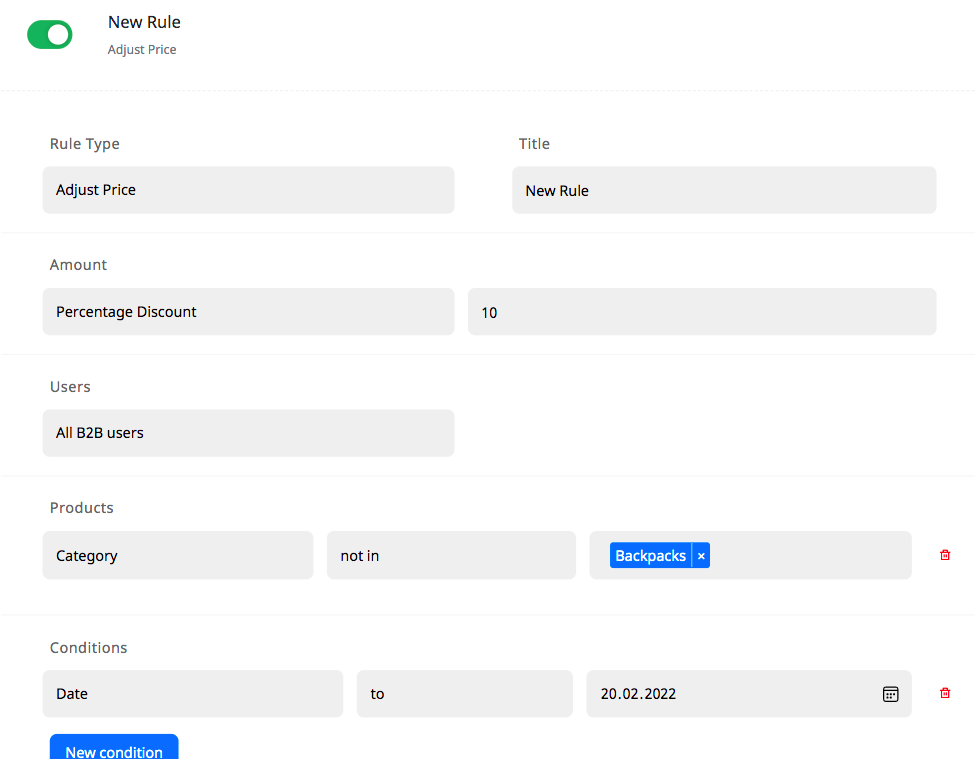
Adjust Price
It allows you to make discounts on the products or categories of your choice.
Example: 10% discount for all products not in the Backpack category, until 2022-02-20 for all B2B users.
Hide Price
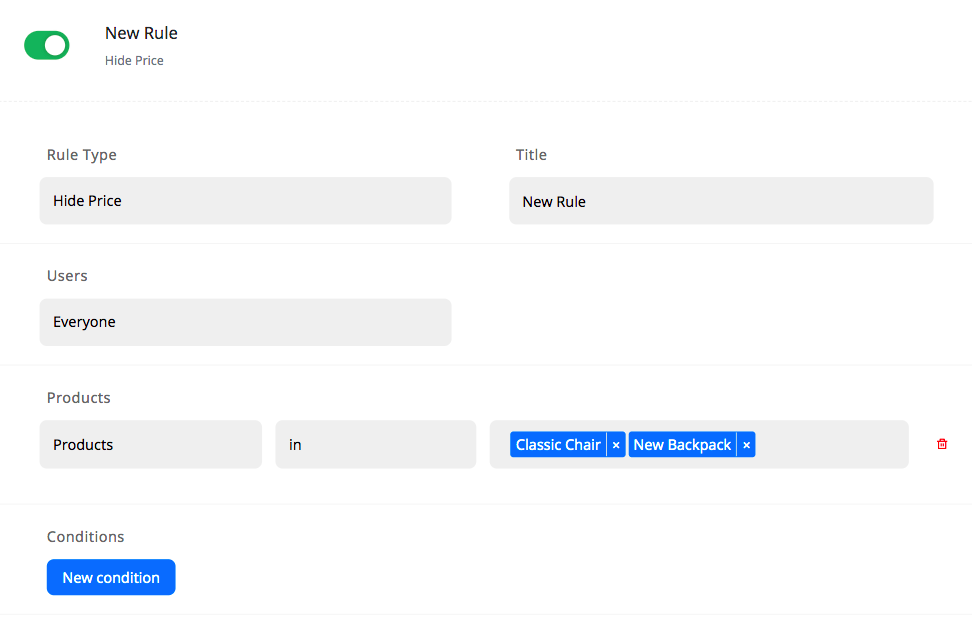
It hides the prices of the products or categories you choose.
Example: Hide Classic Chair and New Backpack products for everyone.
Step
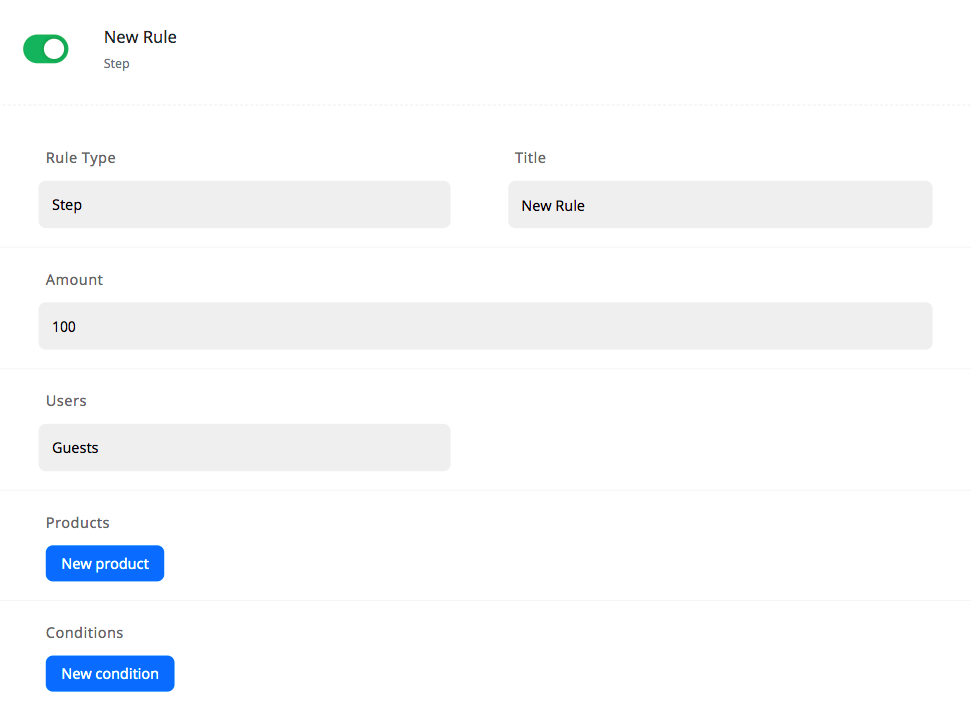
Makes it mandatory for the products you selected to be added to the cart in the form of X and its multiples.
Example: Guests can add all products in multiples of 100. (like 100-200-300-400)
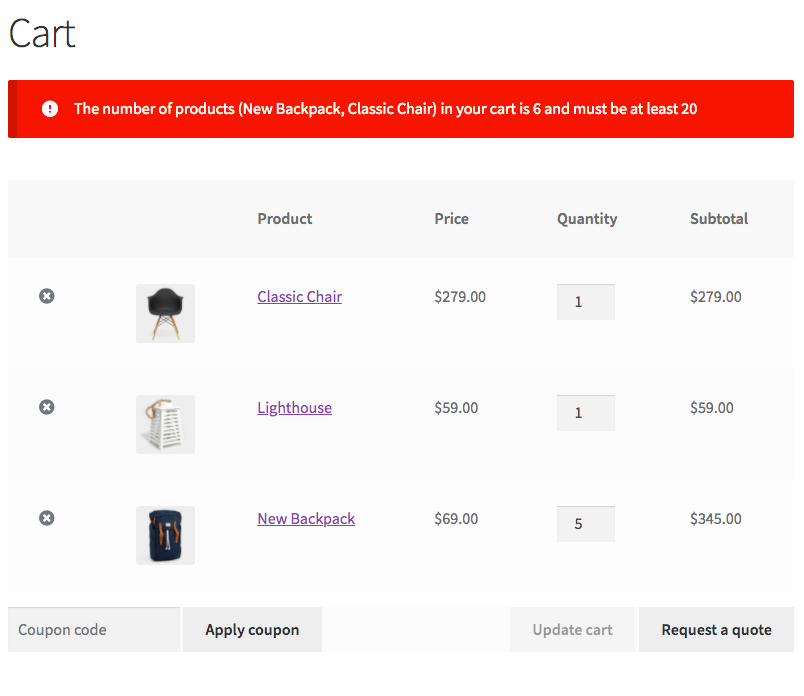
Minimum Order
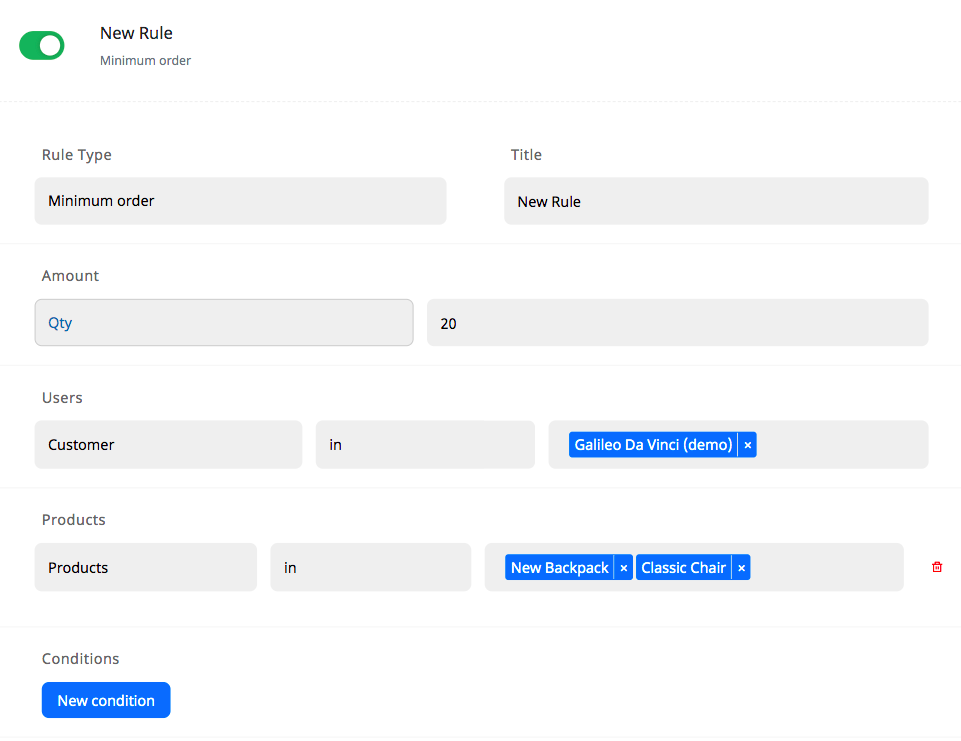
The minimum value or qty required to be in the cart in order to place an order.
Example: If the total qty of New Backpack and Classic Chair products in Galileo Da Vinci’s cart is less than 20, he cannot place the order. Other items in the cart do not affect this number.
Maximum Order
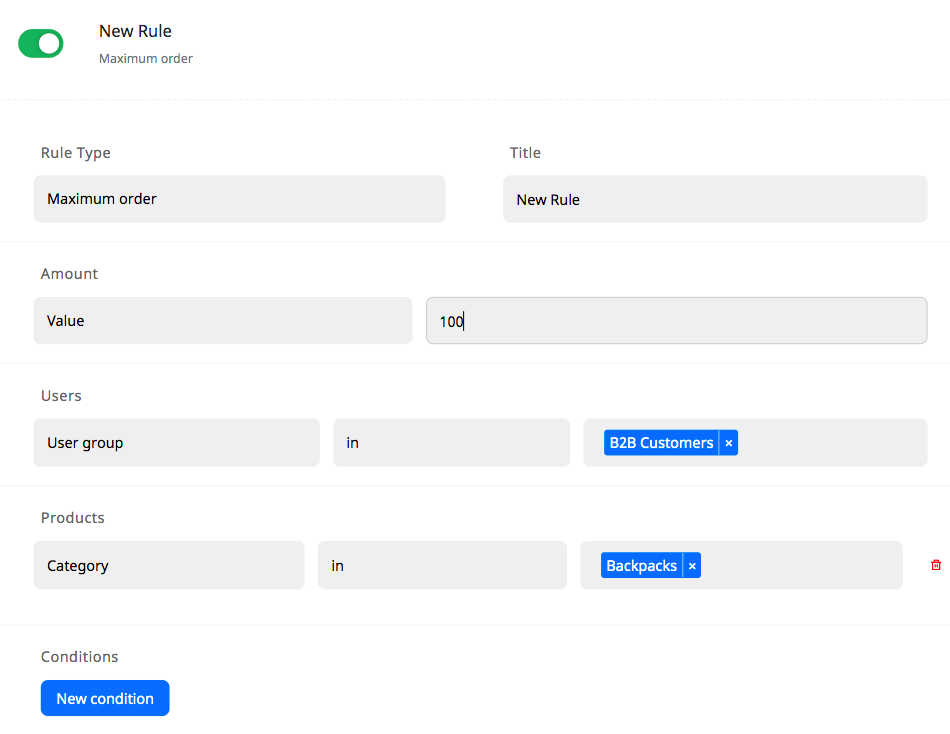
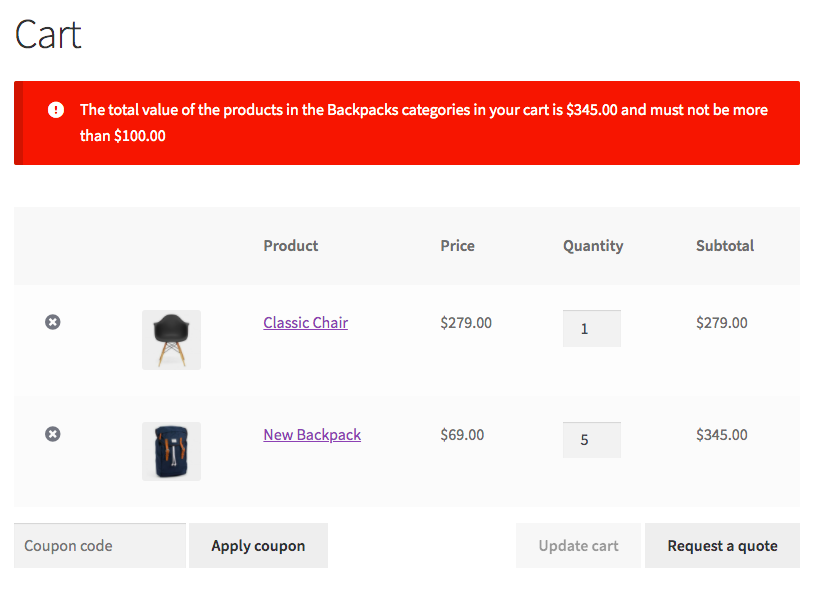
The maximum value or qty required to be in the cart in order to place an order.
Example: For the “B2B Customers” group, if there is a Backpacks category product in the cart, the total value of the cart must be at most $100 in order to complete the order.
Free Shipping
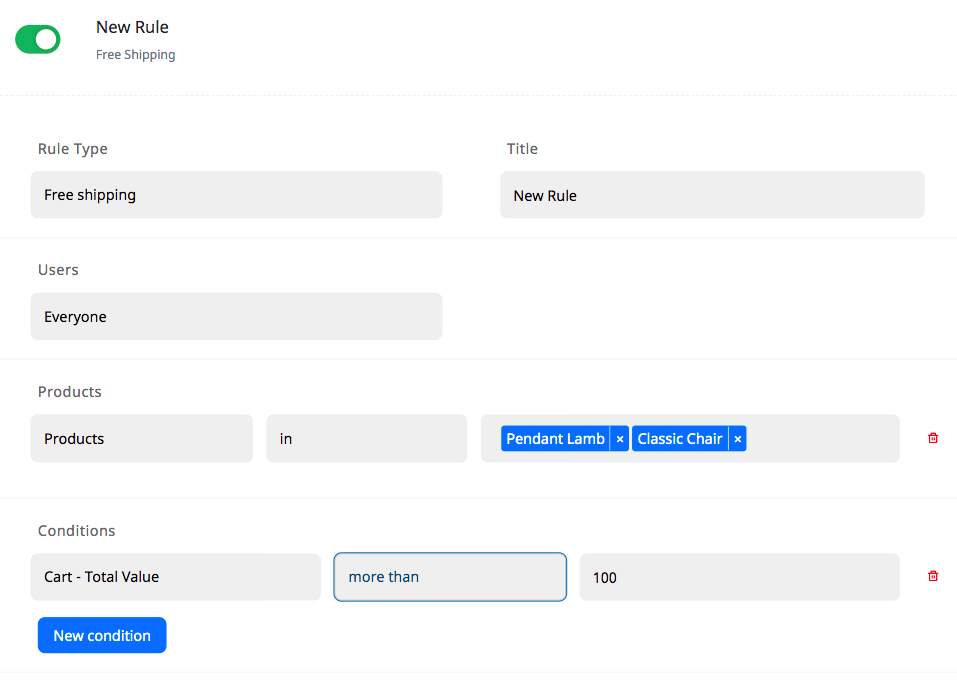
You can choose when the Free Shipping option will be active.
Example: Free Shipping will only be active if the cart value is $100 or more, and there is at least one of the Pendant Lamp OR Classic Chair products in the basket. In all other cases, the Free Shipping option will be removed.
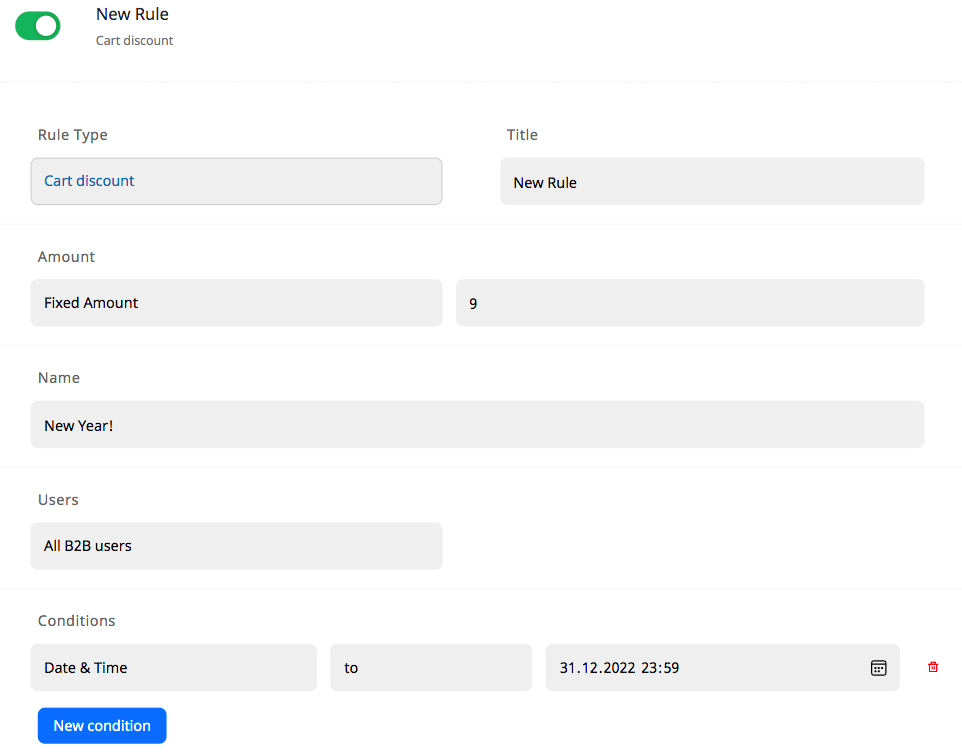
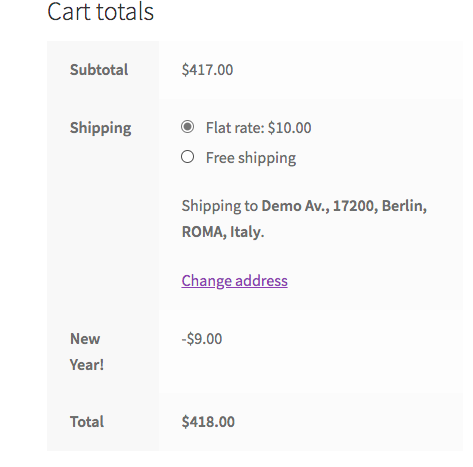
Cart Discount
It allows you to make a discount on the cart.
Example: A $9 discount
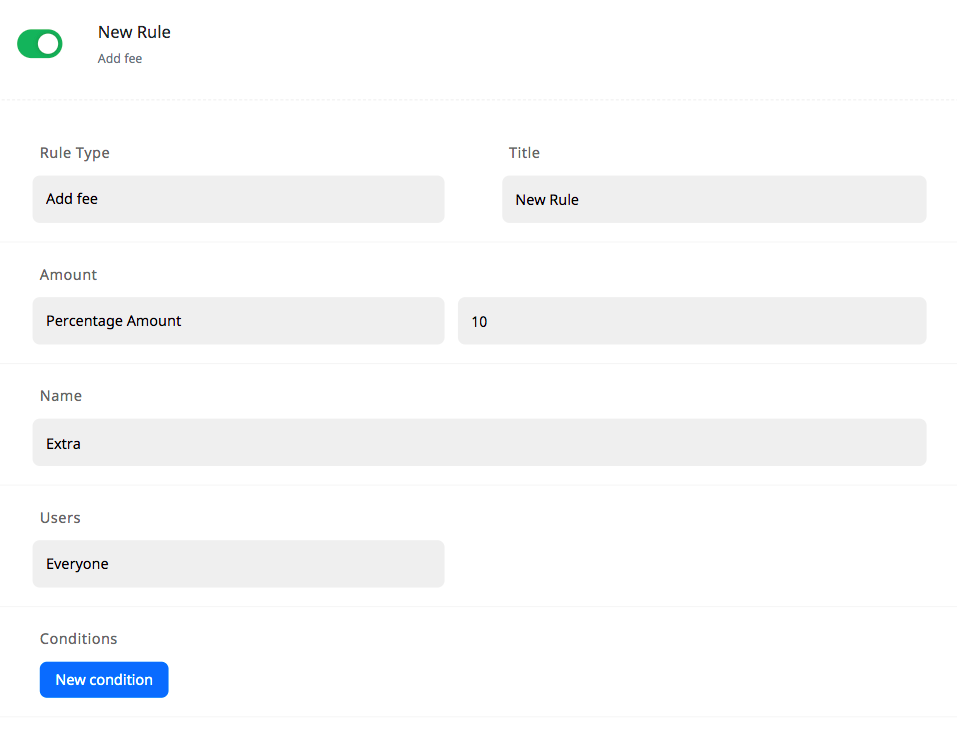
Add fee
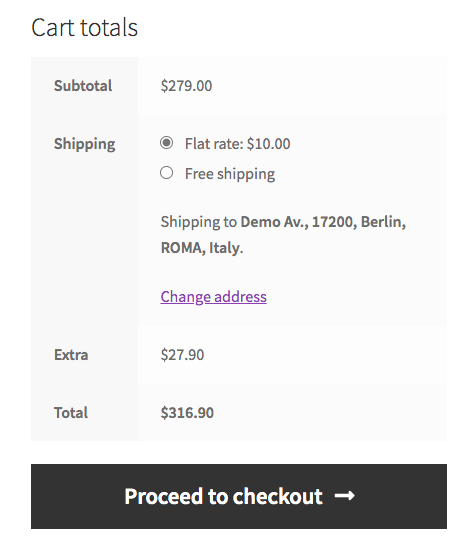
It allows you to add an additional fee to the cart.
Example: 10% “Extra” fee to the cart
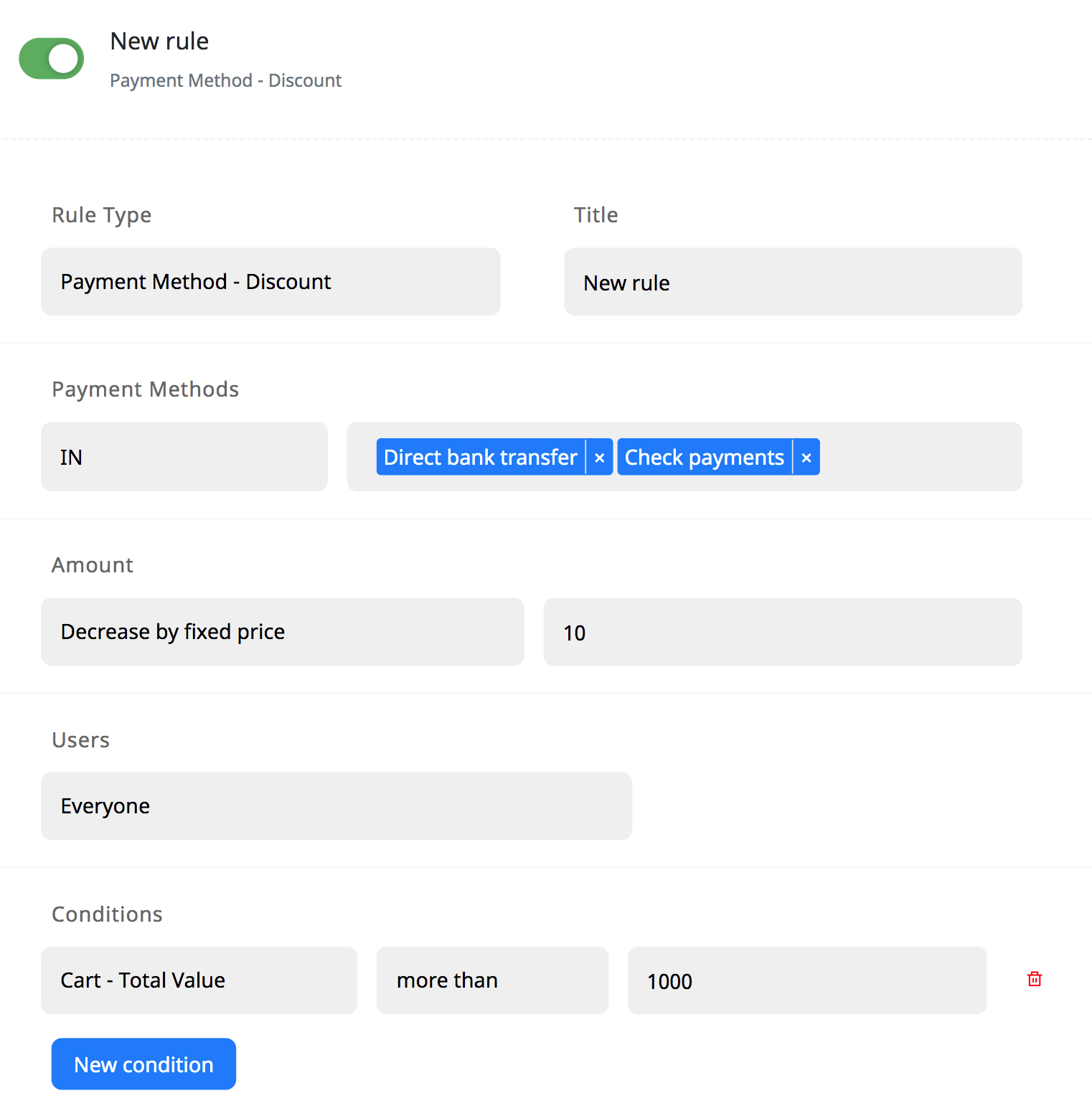
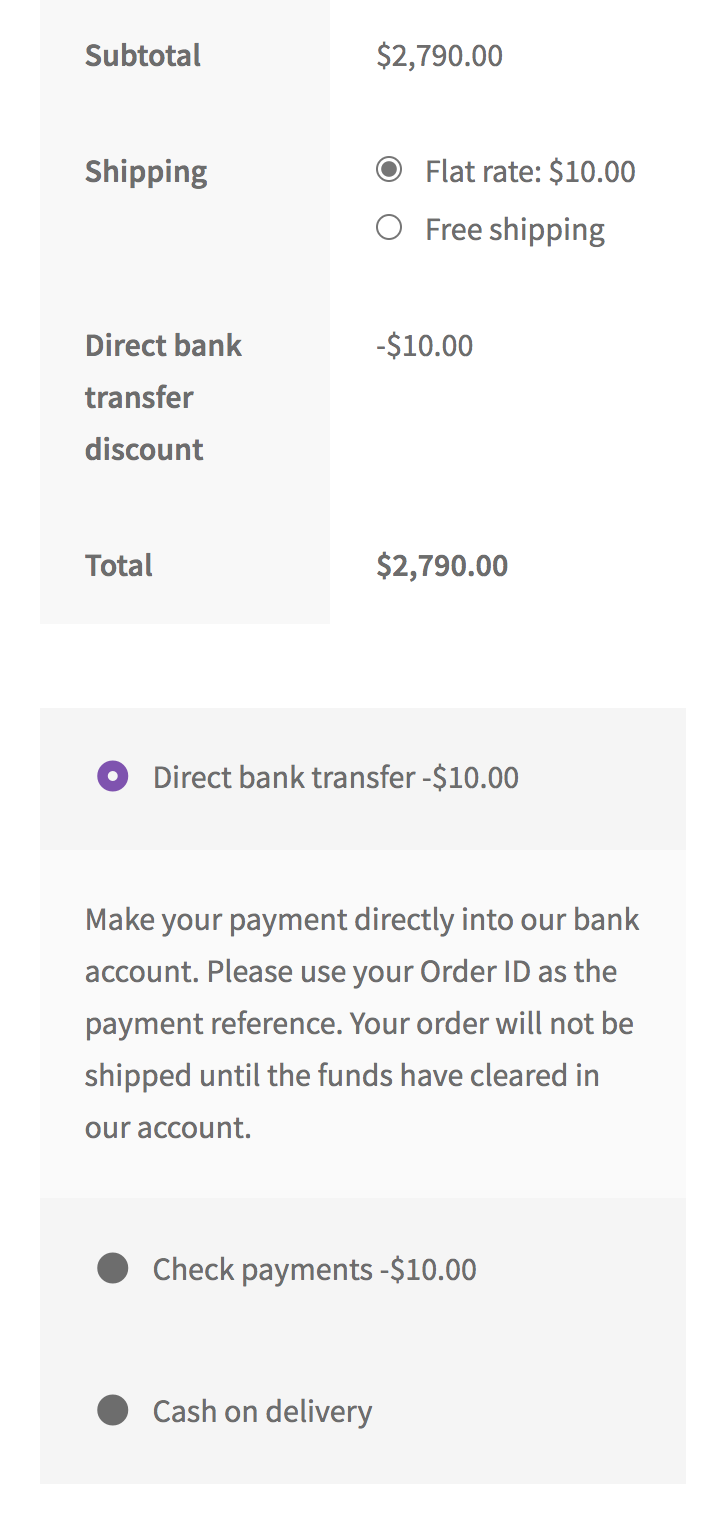
Payment Method – Discount
It applies a discount for the payment methods you choose.
Example: Customers with cart value over $1000 will get 10% discount on the “Direct bank transfer” and “Check payments” methods
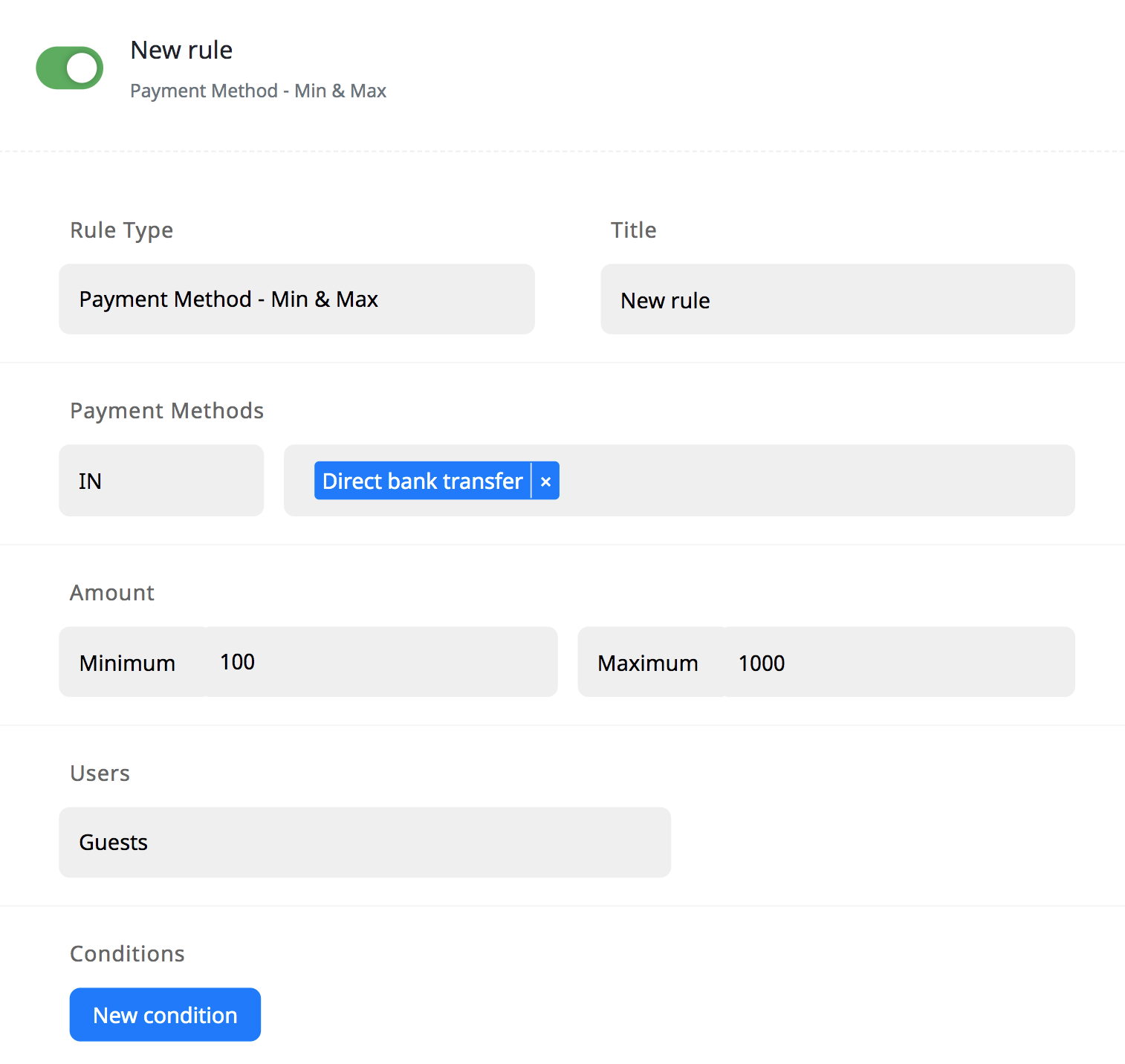
Payment Method – Min & Max
Payment methods are valid between the minimum and maximum amounts you choose.
Example: In order for the “Direct bank transfer” payment method to be active for guests, the cart value must be between $100 and $1000.
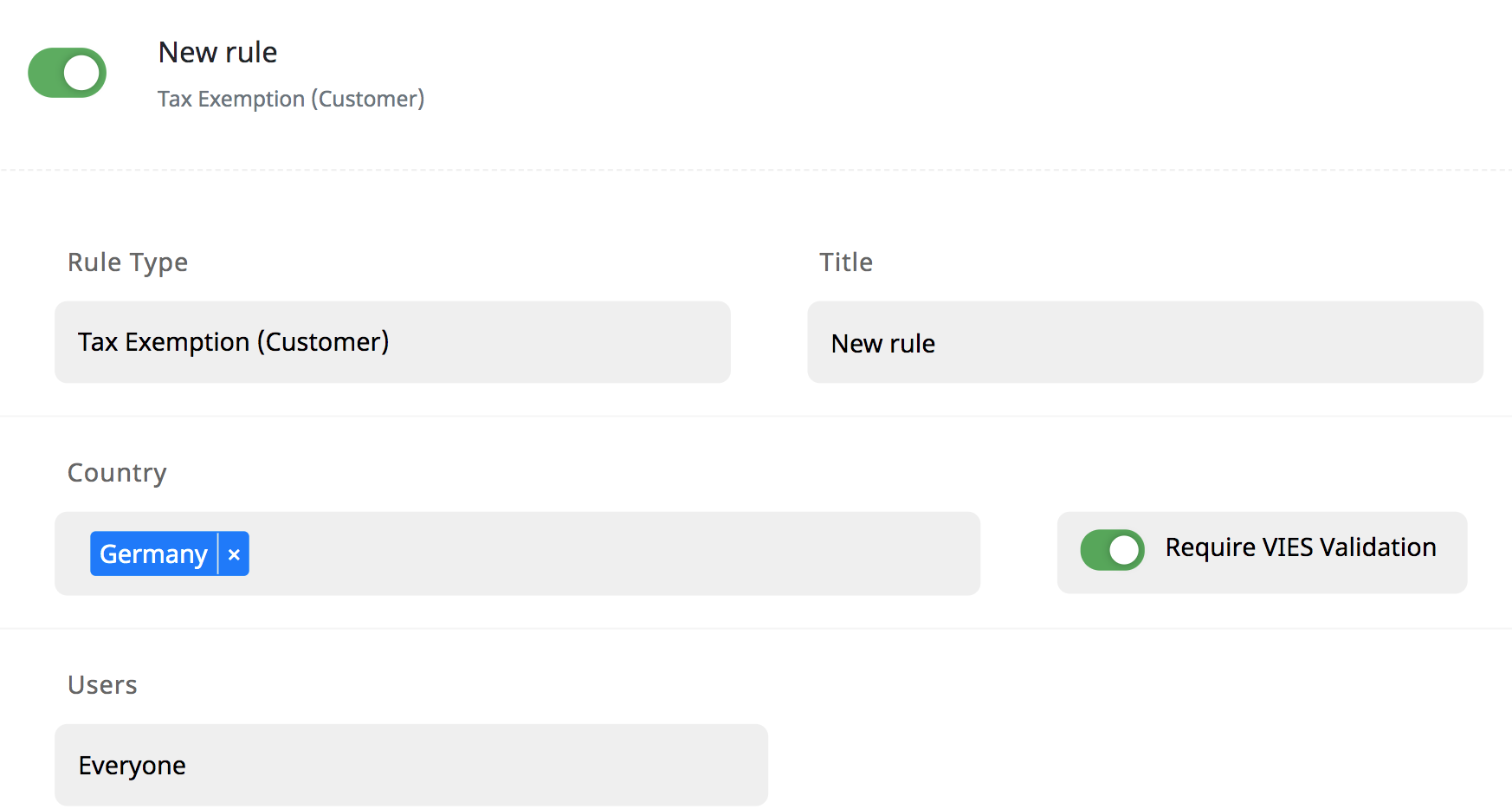
Tax Exemption (Customer)
You can give tax exemption for the customers.
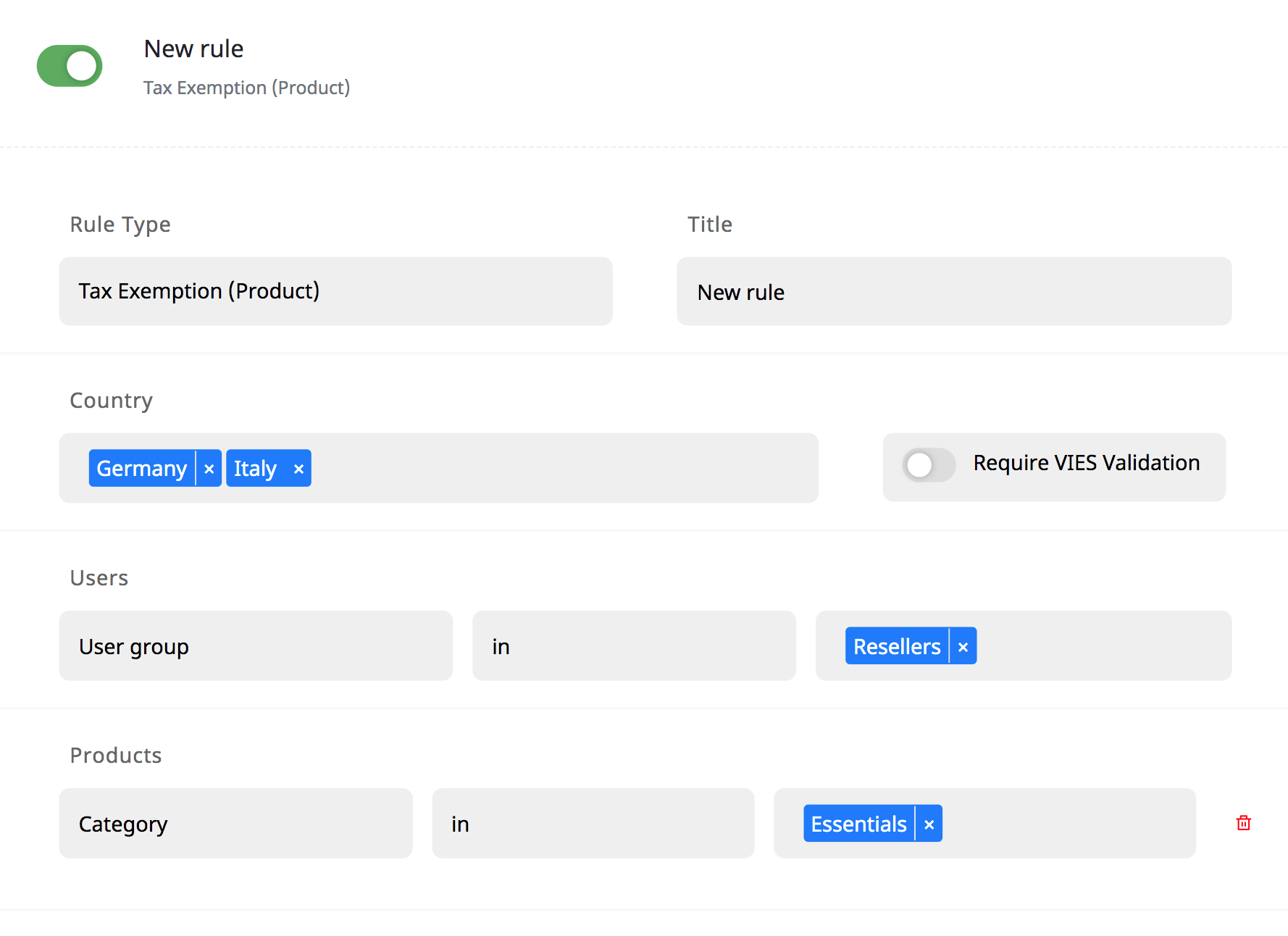
Tax Exemption (Product)
You can change the tax of the products to “Zero Tax”.
Change Product Page Price Format (Experimental)
You can show the price text on the product pages in a different format.
Important: This rule is still experimental and may not work correctly in all situations. Please contact us for support.
For example for B2C and guests:
Regular Price: $100
Become a reseller and get this item with 10% off for just $90!
Shortcodes:
[regular_price]
Returns the regular price of the product
Parameters:
group: Returns the price of the group.
Example:
[regular_price group=b2c] Returns the B2C price of the product
[regular_price group=70] Returns the price of the product in group 70 (like Reseller)
product_type: Sets which product type this shortcode applies to. If the product is not suitable for that type, an empty result is returned and that line is not printed on the screen.
Example:
[regular_price group=b2c product_type=simple] Returns price only for products of type Simple. If this product is a variable, the result is not returned and that line is not written to the screen.
[sale_price]
Returns the sale price of the product.
The above parameters are valid.
[active_price]
Returns the current price of the product.
The above parameters are valid.
[price]
It gives the current price of the product in formatted form.
The above parameters are valid.
[discount]
It shows the discount amount or percentage over the b2C price of the product.
Parameters:
display: If it is to be returned as a percentage, the display=percentage parameter should be used.
[discount display=percentage]
Example
Regular Price: [regular_price group=b2c]
Wholesale Price: [active_price group=30] ([discount display=percentage group2=30]% off)
Output:
Regular Price: $100 Wholesale Price: 90$ (10% off)
Please note that
- You can add only one shortcode per line
- If a shortcode in a line returns an empty result, that line is not written to the screen.
- You can use HTML tags.
EXTEND FORMS
With eB2B you can extend the registration form and/or billing form with extra fields.
Registration Types
You can organize fields and customers by adding types to the registration form. For example, when asking individual customers for their gender, you can ask your business customers for a VAT number.
IMPORTANT!
If you add only one registration type, it will not appear in the registration form and new users will be automatically assigned to this type.
Custom Fields
- Type: Type of field (textbox, textarea, email, number, select, checkbox, date, file, country, country and state, VAT number)
- Label: Label of the field
- Placeholder: Placeholder of the field
IMPORTANT!
You can add only one VAT Number field.
REGISTRATION FORM
- Which registration types can see: Which registration types will see this field?
- Required: Is this field required?
SETTINGS
You can find general settings for eB2B here.
Features
You can enable the features you want to add your store’s frontend. These features appear on the My Account page of the customers. (except Admin Panel feature)
Guests
These are the settings related to your visitors who are not logged in.
Hide Prices/Pages
How will guests see the site? s
- Do nothing
- Hide prices: Product prices are hidden for guests
- Only hide: Only prices are hidden
- “Login to view” text: Prices are hidden and replaced with “Login to view” text
- “Request a quote” button: Prices are hidden and replaced with Request a quote” button.
Registration
If you want visitors to wait for your approval after registering as a B2C, you can select B2C registration approval → Manual approval.
Enable type selector at registration form: You can disable the type selection feature in the registration form. This turns off the B2B registration feature and all visitors register as B2C.
Quotes
In this section, you can choose in which groups the “Request a quote” button will appear and which information will be requested from the customer.
Price Tiers
Show Product Price Tiers table if available
Show Discount Rate in the table: Discount rate will be also added to the table
Show price range instead of current price: The prices of all products with Price Tiers will appear as $100 – $200.
Show “From X” instead of price range: The price range will appear as “From $100”.
Advanced
Endpoints
You can set the URL of the Offers section on the My Account page to suit your language.
Colors
You can change the colors and styles of the tables in the shop.
SHORTCODES
REGISTRATION FORM
[eb2b_registration]
You can add a form to any page you want to separate B2C and B2B registrations.
Parameters:
regtype_selector
You can use “show” or “hide” to hide/show the “registration type” selector. If registration type selector is disabled, users will register as B2C customer.
For example: [ei_b2b_registration regtype_selector=hide]
ADMIN PANEL
eB2B offers a special UI that allows you to easily manage your WooCommerce admin panel so you can have a full e-commerce experience.
To manage your store (orders, products, coupons, etc.) in the panel, simply click on the content. The actions you can do about that content are shown just below.

If you don’t want to use this panel, you can turn it off.
To turn it off:
Go to eB2B → Settings.
Disable the Admin Panel.
You can enable this feature again at any time.
TRANSLATION
For translation we highly recommend Loco Translate plugin.
After install Loco Translate, please follow the steps below:
1- Go to Loco Translate → Plugins
2- Select eB2B
3- Click New language
4- If it says “Template missing”, please select Skip template
5- Choose your language and “Choose location” as Author
SUPPORT
If you need support, please contact us via Support.
UNINSTALL
To remove eB2B from your site;
- Go to WordPress Admin → Plugins
- Click to Deactivate, then Delete
Important Notice:
By default, the existing data (eB2B related options, tables, etc.) is not deleted when you uninstall the plugin completely. If you also want to delete all the data, turn off Settings → General → Keep data on uninstall before uninstalling the plugin.